If you've ever connected Wireshark to a process bus segment of a real digital substation, you know the picture: a short while after starting the capture, Wireshark freezes — a well-known problem. It hits especially hard on substations carrying Sampled Values traffic.
The reason is mundane: a single Sampled Values stream at 4000 frames per second (80 samples per cycle, 50 Hz) already places a serious load on the analyzer. In a real process bus segment there are dozens of such streams — plus GOOSE, plus PTP, plus broadcast and service traffic. It's not that Wireshark "can't cope" with the analysis — it simply can't keep up with writing and displaying all these packets in real time.
The Wireshark wiki has a direct recommendation on this:
If you're not interested in all packets, a capture filter that selects only the packets in which you're interested could reduce overall processing time, as packets can be discarded by the capture filter before being written to a capture file — and, on systems with in-kernel capture filtering, they'd be discarded before they're even copied up to Wireshark from the kernel.
The key idea: a capture filter discards packets before they reach Wireshark. Unlike a display filter, which works on already-recorded traffic. So if you know in advance what you're looking for, the capture filter is your best friend.
Capture Filter vs Display Filter: don't mix them up!
There are two types of filters in Wireshark that often get confused. The difference matters:
| Parameter | Capture Filter | Display Filter |
|---|---|---|
| When applied | Before packet is written | After packet is written |
| Can be changed on the fly | No (capture must be stopped) | Yes, in real time |
| Syntax | BPF (as in tcpdump) |
Wireshark's own syntax |
| Performance impact | Reduces disk and memory load | None on capture |
| Effect on data | Permanently discards | Just hides, doesn't delete |
The capture filter decides what ends up in your "data collection"; the display filter decides what you'll inspect within an already-collected one.
For "let me just see what's on the network" tasks on a loaded segment, you can hardly get by without a capture filter.
How to apply a capture filter in Wireshark
There are three standard ways:
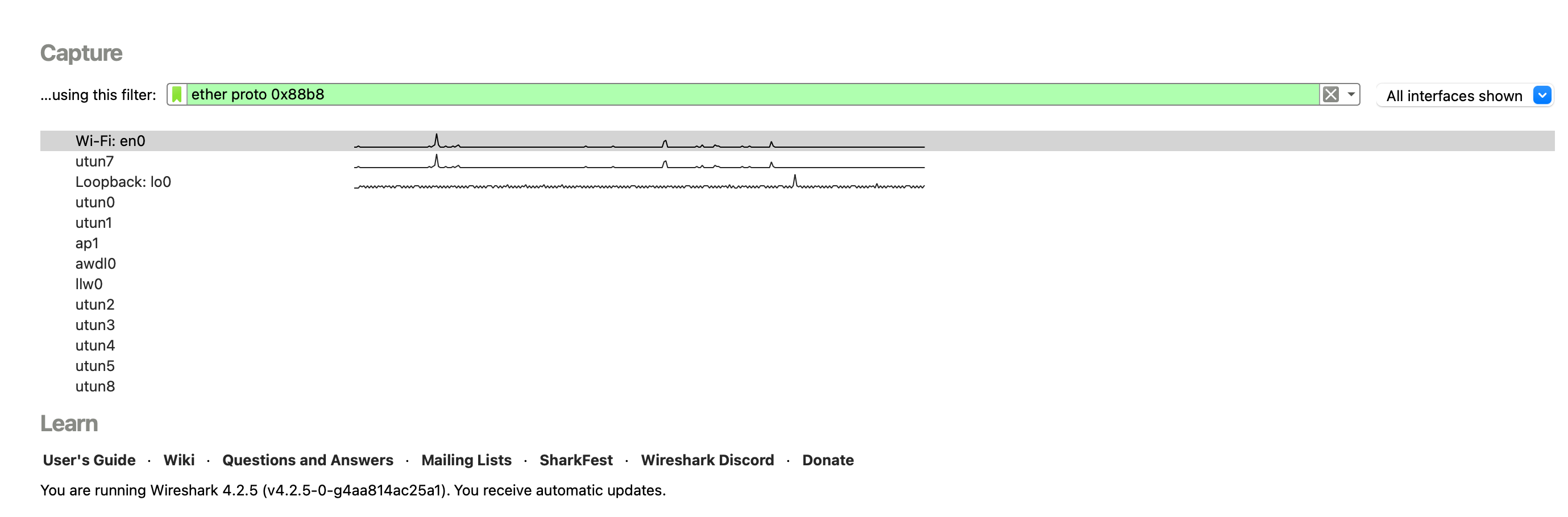
Method 1. Welcome screen.
On the welcome screen, before selecting a network interface, type your capture filter expression.
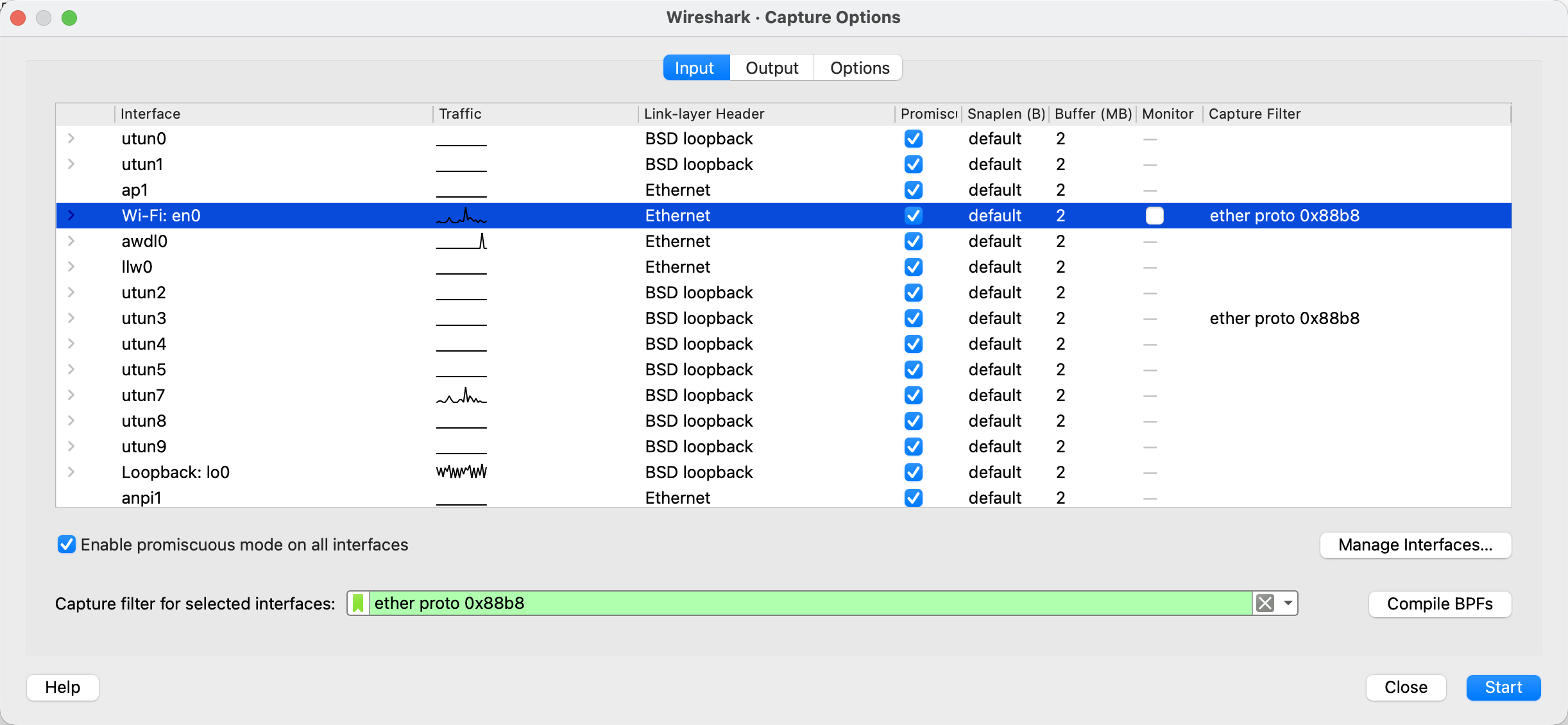
Method 2. Capture menu.
Capture → Options → the Capture Filter for selected interfaces field next to the chosen interface.
There are other methods, but these two are enough to get started :)
If your filter has a syntax error, Wireshark highlights the field in red and won't let you start the capture. Green means the filter is syntactically valid — but that's no guarantee it does what you intended. You'll still need to verify it.
A few BPF quirks worth remembering
Capture filter expressions are written in BPF — the same language used by tcpdump. The syntax is compact, but when working with substation traffic there are a couple of non-obvious moments to watch out for.
VLAN breaks the offsets
The vlan keyword in a BPF filter is not a simple "is there a VLAN tag" predicate. It's a directive that shifts all subsequent offsets in the filter as if the VLAN tag weren't there. So ether proto 0x88b8 before the vlan directive captures untagged frames, and after it — tagged ones.
A classic situation: you need to grab all GOOSE traffic, and some frames carry a VLAN tag while others don't. The intuitive approach
(vlan and ether proto 0x88b8) or ether proto 0x88b8
does not work as expected. Untagged traffic doesn't make it through, because after vlan the offsets are already shifted, and the second branch is looking for the EtherType in the wrong place.
The correct order is: untagged case first, tagged second:
ether proto 0x88b8 or (vlan and ether proto 0x88b8)
The general rule: all matches without VLAN must come before the first occurrence of vlan in the filter.
Partial MAC address
ether host xx:xx:xx:xx:xx:xx requires a full MAC. But if you need to catch, for example, traffic from all devices of a vendor with OUI 00:0C:22, you have to write a byte-offset filter:
(ether[0:4] & 0xffffff00 = 0x000c2200) or (ether[6:4] & 0xffffff00 = 0x000c2200)
Here ether[0:4] is four bytes starting at offset 0 (the destination MAC field), and ether[6:4] is four bytes starting at offset 6 (the source MAC field). The : operator in BPF only accepts widths of 1, 2, or 4 — three bytes can't be selected — so we take four and zero out the extra fourth byte with the mask 0xffffff00.
Alternatively, you can compare byte-by-byte — longer, but more readable:
(ether[0]=0x00 and ether[1]=0x0c and ether[2]=0x22) or (ether[6]=0x00 and ether[7]=0x0c and ether[8]=0x22)
Cheatsheet: capture filters for IEC 61850
Now what we've all been waiting for. Below — ready-made recipes for typical digital-substation tasks.
GOOSE
All GOOSE (no VLAN):
ether proto 0x88b8
All GOOSE including VLAN-tagged frames:
ether proto 0x88b8 or (vlan and ether proto 0x88b8)
GOOSE from a specific IED (filter by source MAC):
ether proto 0x88b8 and ether src 00:0c:22:12:34:56
GOOSE to a specific multicast address:
ether proto 0x88b8 and ether dst 01:0c:cd:01:00:01
GOOSE from all devices of one vendor (by OUI, e.g. 00:0C:22):
ether proto 0x88b8 and (ether[6:4] & 0xffffff00 = 0x000c2200)
GOOSE with a specific APPID (e.g. 0x1000).
APPID is the two bytes immediately after EtherType, at offset 14–15 in an untagged frame:
ether proto 0x88b8 and ether[14:2] = 0x1000
With VLAN:
(ether proto 0x88b8 and ether[14:2] = 0x1000) or (vlan and ether proto 0x88b8 and ether[14:2] = 0x1000)
GOOSE APPID range (e.g. from 0x1000 to 0x10FF):
ether proto 0x88b8 and ether[14:2] & 0xff00 = 0x1000
GOOSE multicast destination range:
ether proto 0x88b8 and (ether[0:4] & 0xffffff00 = 0x010ccd00) and (ether[4:2] & 0xff00 = 0x0100)
Sampled Values
All SV (no VLAN):
ether proto 0x88ba
All SV including VLAN:
ether proto 0x88ba or (vlan and ether proto 0x88ba)
SV from a specific MU (by source MAC):
ether proto 0x88ba and ether src 00:0c:22:aa:bb:cc
SV to a specific multicast address:
ether proto 0x88ba and ether dst 01:0c:cd:04:00:01
SV with a specific APPID (e.g. 0x4000):
ether proto 0x88ba and ether[14:2] = 0x4000
SV from all MUs of one vendor (by OUI):
ether proto 0x88ba and (ether[6:4] & 0xffffff00 = 0x000c2200)
SV from the 01:0C:CD:04:xx:xx range:
ether proto 0x88ba and (ether[0:4] & 0xffffff00 = 0x010ccd00) and (ether[4:2] & 0xff00 = 0x0400)
About filtering by goID and svID
Bad news here: you can't reliably filter GOOSE by goID or SV by svID using a capture filter. The reason is that these fields live inside a BER-encoded APDU, and their offset from the start of the frame depends on the length of preceding fields (gocbRef / svID header, etc.). BPF, on the other hand, can only work with fixed offsets.
Practical options:
- Use APPID as a proxy. With a properly configured publisher, APPID is unique and corresponds to a single
gocbRef/svCB. Filtering by APPID is the most reliable way to grab a specific stream at the capture level. - Use the multicast destination MAC. It's also recommended to keep it unique per stream in a properly designed and commissioned system.
- First capture all traffic of a given protocol, then filter with a display filter. If the stream isn't too large, this works. For SV on a loaded process bus — not so much.
- Write a byte-offset filter for a specific case. Capture a few frames of the target stream without a filter, see at which offset your string of interest sits, and write a filter like
ether[N:4] = 0xXXXXXXXX. The method works but is extremely fragile — any change in preceding APDU fields shifts the offset and the filter stops catching.
In 90 % of cases, the combination "EtherType + APPID" or "EtherType + dst MAC" gets the job done.
Exclusion filters — when it's easier to cut out the noise
Another useful trick is to capture everything except one or two especially noisy streams. For example, take the entire process bus without two specific SV streams, so Wireshark doesn't choke:
not (ether proto 0x88ba and ether dst 01:0c:cd:04:00:01) and not (ether proto 0x88ba and ether dst 01:0c:cd:04:00:02)
Or, conversely, capture GOOSE and PTP but not SV:
ether proto 0x88b8 or ether proto 0x88f7
For cases like "everything except MMS communications with a specific server":
not (tcp port 102 and host 192.168.1.10)
A few practical tips at the end
- Always start with a capture filter when working on the process bus. "Let me see what's there and figure it out later" ends with a frozen Wireshark.
- Keep a cheatsheet handy. BPF isn't a language that sticks on the first try. A table of ready-made expressions saves tens of minutes per troubleshooting session.
- For diagnosing real GOOSE/SV problems, the combo "capture filter by EtherType + display filter" usually works best. A coarse capture filter cuts out 95 % of the noise; a precise display filter lets you switch quickly between streams in the already-collected trace.
BPF isn't the friendliest language, but mastering a dozen of the constructs from this article is enough to cover almost any IEC 61850 traffic capture task — and stop watching Wireshark fight for its life and die on the process bus.