In this paper we will review several Wireshark features which allow for more efficient network traffic capture analysis; we will find out where to get network traffic capture files from and what are the basic requirements for these files; last but not least — we will see if we can automate capturing and analysis of digital substation traffic.
Three Wireshark features to increase efficiency in analysis of captured network traffic
Wireshark is one of the most popular instruments for capturing and analysis of network traffic in the market. It has plenty of features, allowing for easy yet detailed analysis of network data. We will share a few Wireshark features which will certainly increase your productivity at analysis of captured traffic.
Display filters in a toolbar
One of the well known and useful functions available in Wireshark is Display filter. Using this filter, user can command Wireshark to show only those frames which match the filter expression. When using Display filter, other capture data is hidden but not deleted from the capture by Wireshark; user can revert to original capture by clearing filter expression.
For example, when performing analysis of network capture from digital substation, user can make Wireshark show only GOOSE messages, excluding Sampled Values traffic, or make Wireshark show only client-server communications (MMS). When defining Display filter expressions user can not only specify the protocol of the interest, but also protocol fields with certain values to show specific and indicative frames. For example, in relation to digital substation traffic, user can make Wireshark show all Sampled Values messages with SmpSynch field equal to Local; simulated GOOSE/Sampled Values messages; GOOSE/Sampled Values messages carrying data with quality attributes of certain value (invalid, test, etc.).
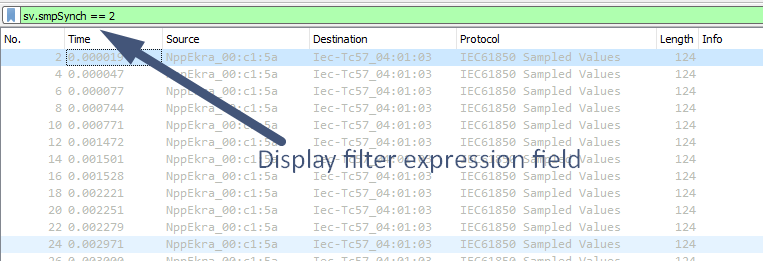
One of the easiest and widespread ways to input and apply a Display filter expression is to use the Display filter text box, located just above the Packet List pane.
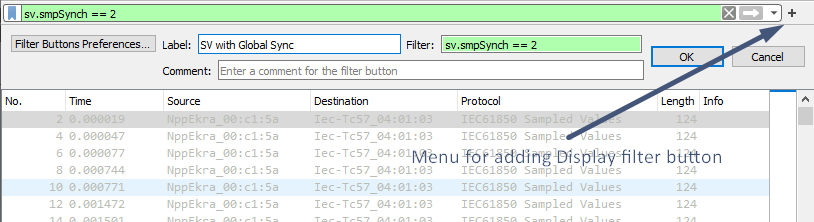
If you use some of the filters frequently, you can add filter buttons to the menu bar, so you will not need to enter them manually every time. To add a filter button, enter filter expression in the Display filter text box and then click the plus (+) button on the right side of the bar. You will see a new bar below the text box where you can specify a label for a filter button and a user comment describing it; the filter expression field will already be filled in with the filter expression specified in the text box.
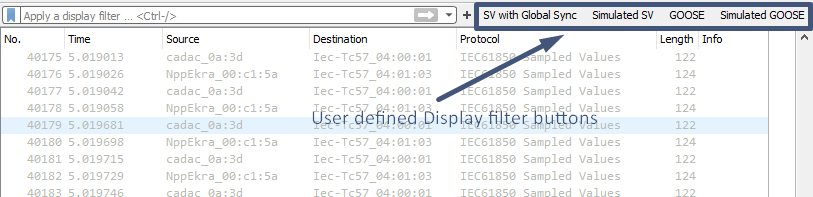
Clicking OK, you will see filter button in the menu bar. Clicking it will apply the filter.
Fast input of the Display filter expressions is not only available through creation of buttons. User can also click the ribbon button on the left side of the bar with a specific Display filter expression filled in and choose the Save this filter option. This will open a new window with all Display filters saved, including your newly added filter. You just need to assign a name to it by double clicking on it and hitting OK. Now you can click on the ribbon and choose the appropriate filter from the list. This is an alternative to buttons.
Using these features you will no more need to enter manually frequently used Display filter expressions. Create specific filters for GOOSE, Sampled Values, MMS and PTP messages as well as for other protocols used in digital substations, indicating specific fields of these protocols and their values.
It is worth mentioning that having applied a certain Display Filter, you can export only data which is displayed, omitting other captured traffic. This enables you to pass only relevant data to your colleagues, not passing them the whole network capture.
Marking and commenting frames
When user has found frames of interest, they can be marked. Marked frames can be easily identified amongst others, because they are shown with black background. One of the useful features with marked frames is that user can create a new network capture file based on the original, which includes only marked frames or all the frames from the first to the last marked (File → Export Specified Packets, then just choose the option which is relevant to you). It is quite useful when you did the investigations, found some specific frames and want to share the results with your colleagues, not sending them the whole capture.
To mark the frame, click on it in the Packet List pane and press Ctrl+M. If you want to mark several frames, choose several frames and use the same combination. To unmark the frame — do the same.
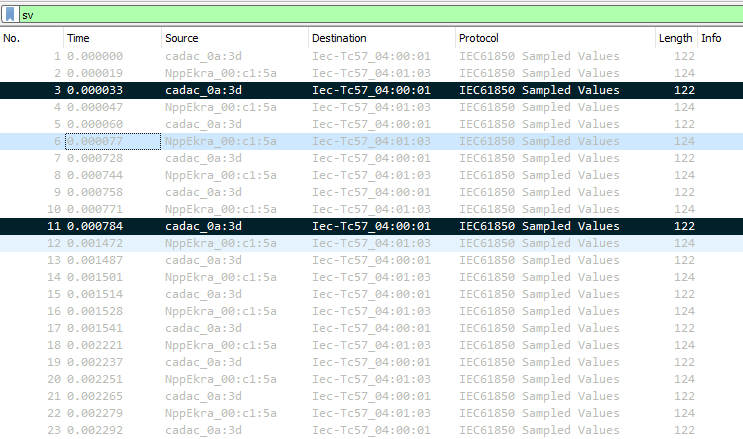
The only drawback of marking is that it is not stored in pcap (pcapng) files. This means that when you close the file and then re-open it, you will not see marked frames.
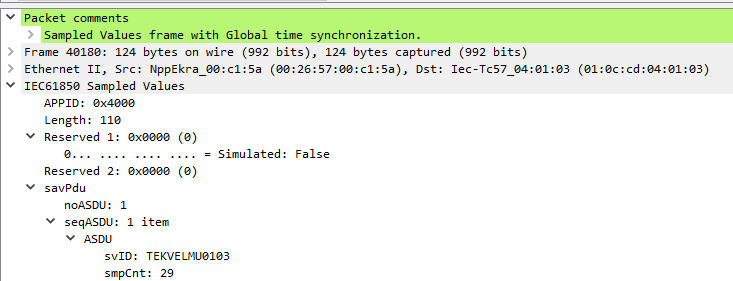
To indicate investigated things to your colleagues you can use the packet commenting feature available in Wireshark. To leave a comment, right-click the specific frame in the Packet List pane, choose Packet Comment and enter the text of your note. Then save the capture file as pcapng (the default option for Wireshark since version 1.8). When your colleagues open the file, they can use the frame.comment Display filter expression to show all frames with comments. The comment itself is displayed in the Packet Details pane.
Displaying user-defined names of IEDs instead of MAC and IP addresses
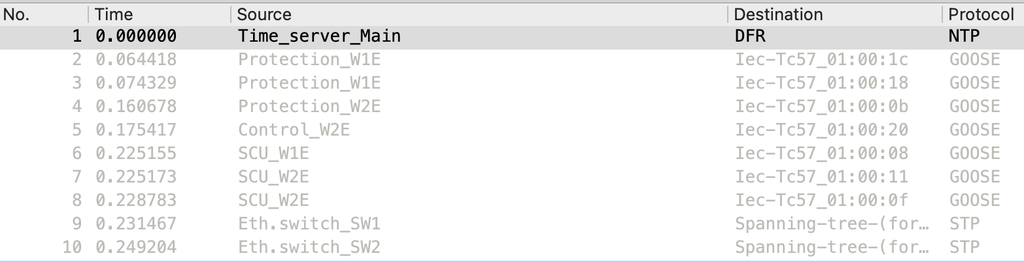
Engineers who have practical experience of working with Wireshark must have noticed that Wireshark replaces the first three octets of the MAC address (known as OUI — Organizationally Unique Identifier) of the IED network interface with the name of its manufacturer. But is it possible to make Wireshark use custom rules to replace specific MAC addresses with user-defined names? For example, to show instead of MAC address 00:26:57:01:34:6e — Protection_IED, and instead of 64:60:38:d0:34:6e — Eth.switch_SW22.
In addition, it would be great if the user could define custom rules to replace IP addresses with user-defined names of IEDs — for example, to show instead of IP address 192.168.1.100 — SCADA.
All this could ease the analysis of network traffic. And the answer is yes — this is possible.
In Windows OS: go to Help → About; in macOS: go to Wireshark → About Wireshark. In the dialog window, choose the Folders tab and click the reference next to Personal configuration. In the folder that opens, create a text file named ethers. In this file specify MAC addresses and user-defined names (separated by a space) for all IEDs whose traffic is expected in the capture file. Save changes.
00.26.57.01.25.9f Protection_W1E
00.26.57.01.25.9d Protection_W1E
00.26.57.01.32.a7 Protection_W2E
00.26.57.01.25.99 Protection_W2E
00.26.57.01.38.2a SCU_W1E
4a.00.62.06.45.a8 SCU_W2E
64:60:38:d0:b8:18 Eth.switch_SW1
64:60:38:d0:b7:18 Eth.switch_SW2
Identically, edit or create a text file named hosts. Specify IP addresses and user-defined names (separated by a space) for all IEDs. Save changes.
192.168.1.210 Time_server_Main
192.168.161.74 DFR
For Wireshark to use data from these files go to Preferences → Name resolution and make sure that Resolve MAC addresses and Resolve network (IP) addresses options are set. Restart Wireshark.
Export to CSV/JSON and other formats
Wireshark provides an export feature to a range of data formats — CSV, JSON, plain text, XML, etc.
CSV can be one of the most common formats as it can be opened in Microsoft Excel. Using Excel built-in features, user can quickly search for certain frames and even create graphs, visualizing current, voltage and binary signals transmitted with GOOSE, Sampled Values and MMS messages.
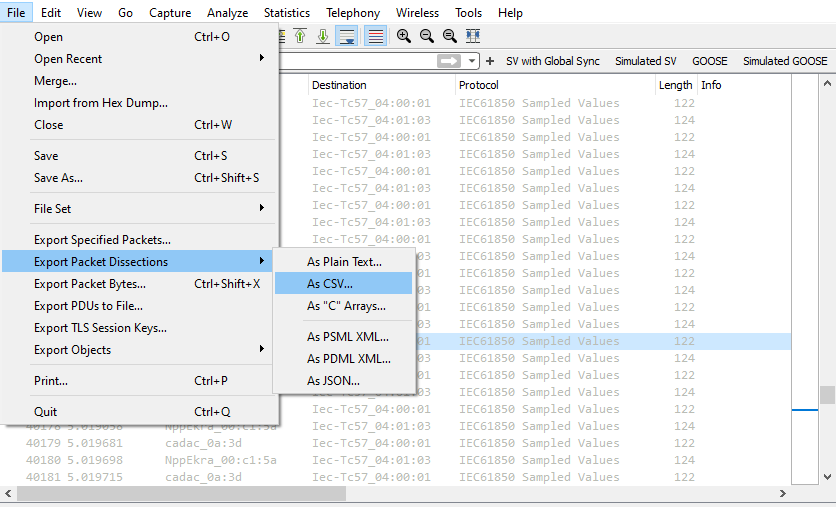
To export data, expand the frame, select the field of interest (for example, current/voltage data in a Sampled Values message), right-click on it and choose Apply as a column. Then you will see the chosen fields available in the Packet List pane. To export the data, choose File → Export Packet Dissections, choose the required format (e.g. CSV) and frames to be included in the exported data (all captured, displayed, marked, etc.).
Those who are familiar with Python can automate the processing, analysis and visualization of the data — the only limit will be your skills and knowledge (for example, using JSON data).
Where do I get network traffic capture files from?
Of course, you can use a PC and Wireshark to capture traffic. But you will not be able to use a single PC in a digital substation to capture all the traffic. First, there is too much data — a PC will reach its operational limits quite fast; second — to capture all the data you need to connect to different network segments (for example, station bus and process bus), but synchronizing and aligning data between them is non-trivial without dedicated software and hardware time synchronization.
To illustrate the scale: for a small 110 kV substation with 22 Sampled Values streams and 120 GOOSE messages, you will need approximately 100 TB/month of storage. To store captured data for 6 months, you will need 600 TB. The cost of that requirement is going to be quite high, equal to the cost of several protection and control panels.
What are the alternatives? We can perform network traffic capturing with the same approach as fault recorders — trigger recording based on communication events (loss of a message, time synchronization quality change, etc.), data changes in messages and other criteria. The recorded data could include pre- and post-event traffic captures as a single PCAP file, with data from several digital substation LAN segments aligned based on time synchronization of the capturing devices. With this approach we can store and process PCAP files over several years.
The described functionality is delivered with Tekvel Park digital substation lifecycle management system. Tekvel Park has a modular structure, including a server and network monitoring devices — Live View Boxes.
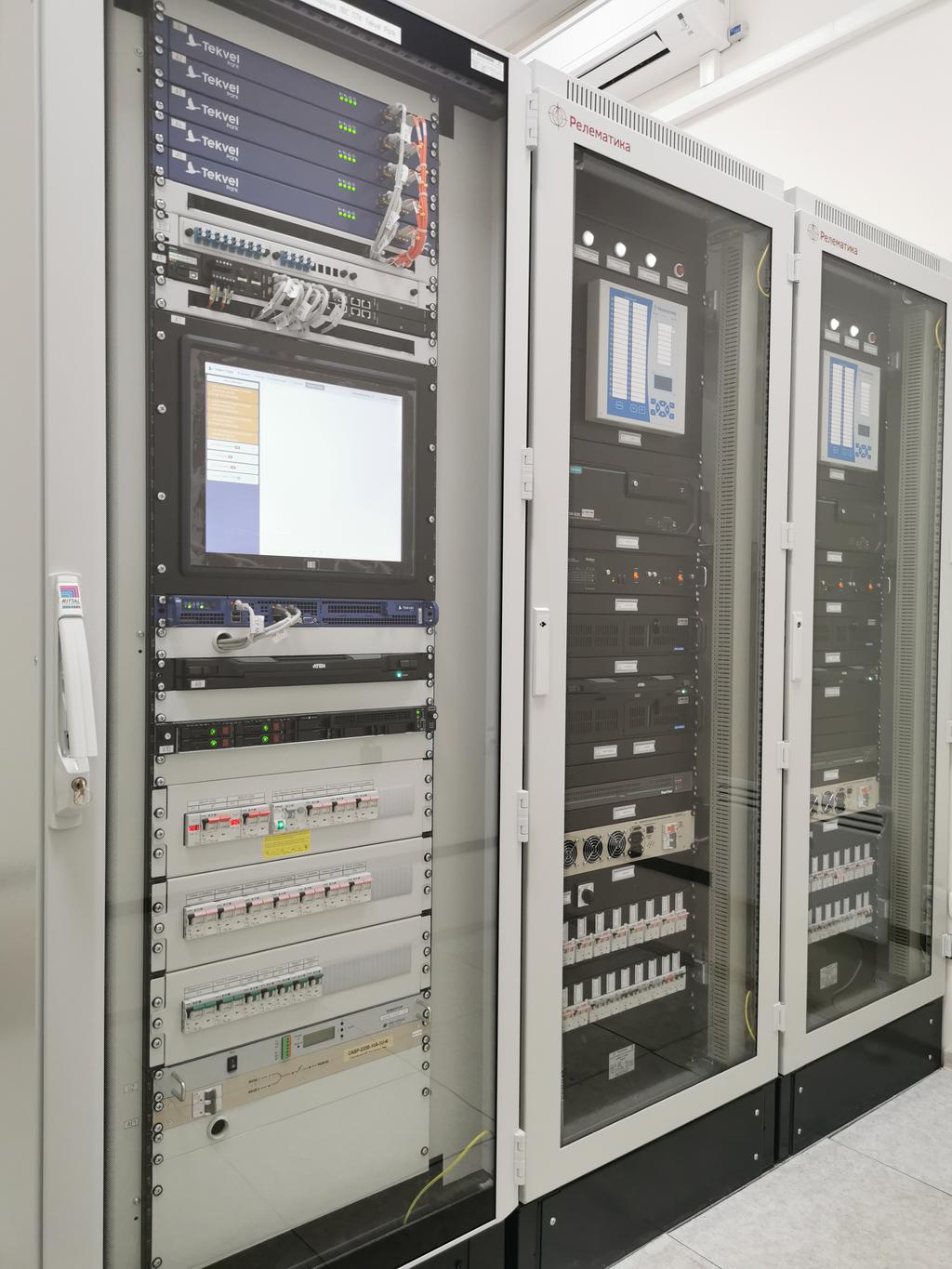
Tekvel Park can be easily scaled to capture all the network traffic in a digital substation. This is provided by the required number of Live View Boxes, which provide not only capturing but also the processing of captured data.
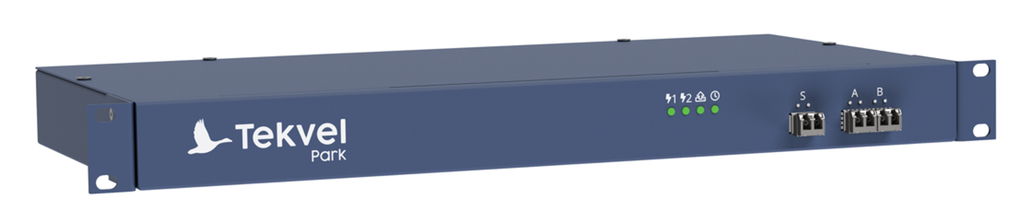
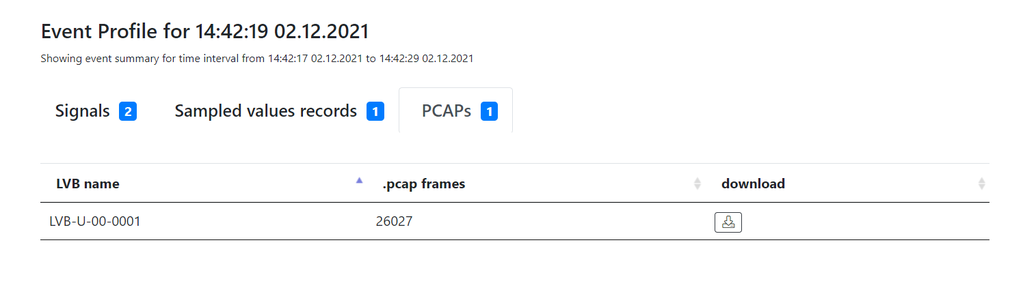
User can download a network capture PCAP file from Tekvel Park for each identified event and then perform the analysis using the Wireshark features described in this article.
Is it possible to automate the analysis of digital substation traffic and make it online?
Yes. This is why Tekvel Park was created. Compared to Wireshark, it has a number of outstanding functions:
- Online and automatic monitoring of IEC 61850 traffic against SCD file. User gets detailed information about message parameters that do not match the configuration per SCD file, in the Tekvel Park events log.
- Online and automatic detection of IEC 61850 communication failures (message counter failures, time sync status changes, loss of messages, etc.). All failures are stored in the events log with timestamp, IED name and control block name.
- Online and automatic detection of data changes in GOOSE/Sampled Values messages.
- Traffic recording initiated by events identified by Tekvel Park, with capture of pre- and post-event traffic. Provided as a single PCAP file in the Tekvel Park event profile.
- Visualization of waveforms based on GOOSE and Sampled Values data with signals description in your native language.
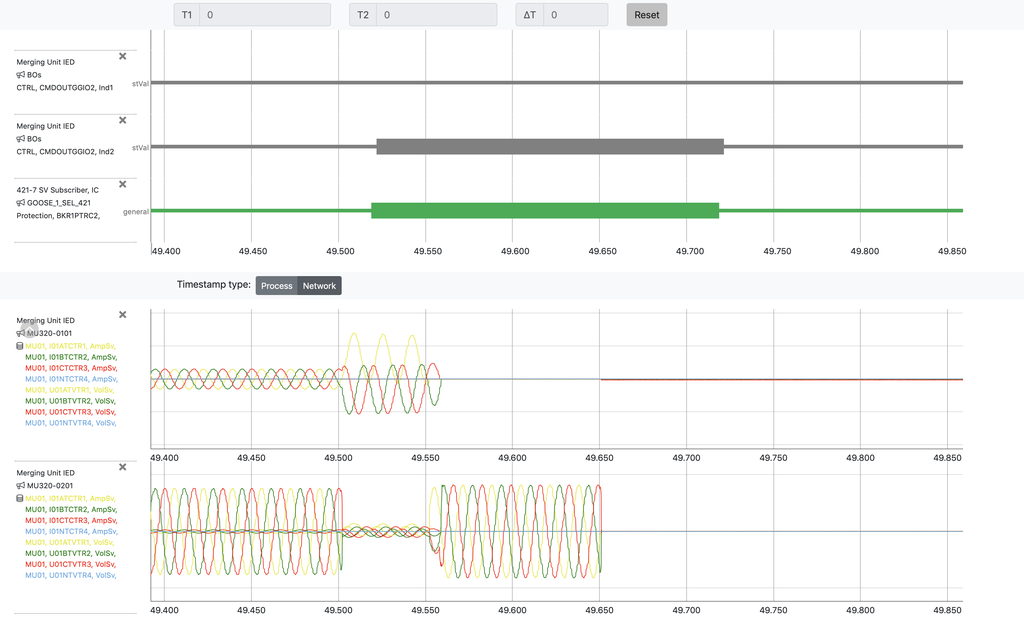
It turns out that in most cases you do not even need to download a PCAP file from Tekvel Park and analyze it manually. This analysis is done automatically and in online mode. Tekvel Park will not let you down even in the trickiest situation, providing an accurate PCAP file.
Do not get lost in digital substation networks!